Table of Contents
ToggleXfinity has quietly become one of the larger players in the smart home market, bundling security, automation, and connectivity into a single ecosystem. If you’re already an Xfinity internet customer, the pitch is straightforward: leverage your existing service to control cameras, locks, thermostats, and lighting from one app. But does it actually deliver for DIYers and homeowners who want reliable automation without reinventing their entire tech stack? This guide walks through what Xfinity Smart Home offers, how to set it up, what it costs, and whether it’s a practical fit for your home.
Key Takeaways
- Xfinity Smart Home provides an integrated ecosystem for security, automation, and connectivity through a single app, making it ideal for existing Xfinity internet customers seeking unified control.
- The system supports wireless installation of cameras, thermostats, locks, and lighting controls with Z-Wave and Zigbee compatibility, allowing DIY setup without professional technicians.
- Cloud-based video storage requires a stable internet connection and subscription—ranging from $10/month for self-monitoring to $40–$50/month for 24/7 professional monitoring with cellular backup.
- Xfinity Smart Home lacks local storage options and native integration with Apple HomeKit, Google Home, or Alexa, limiting flexibility for multi-brand smart home strategies.
- Professional monitoring contracts involve 12–24 month commitments with early termination fees, while equipment pricing ranges from $150–$200 for starter kits to $180+ for outdoor cameras and video doorbells.
What Is Xfinity Smart Home and How Does It Work?
Xfinity Smart Home is Comcast’s integrated home automation and security platform, managed through the Xfinity Home app or a central touchscreen control panel. The system runs on a wireless hub that connects Z-Wave and Zigbee devices, along with Wi-Fi-enabled cameras and smart products.
Unlike standalone systems that require separate hubs for every brand, Xfinity acts as a unified controller. You can arm security sensors, view live camera feeds, adjust your thermostat, and control smart plugs, all from the same interface. The backbone is your Xfinity internet service, which powers cloud storage for video footage and enables remote access when you’re away.
The system offers professional monitoring through a monthly subscription, which includes 24/7 security response and alerts sent to your phone. Self-monitoring is also available at a lower tier, though you’ll lose features like cellular backup and full video recording history.
For DIYers, installation is manageable. Most sensors and devices are wireless and mount with adhesive strips or a single screw. The hub connects via Ethernet to your Xfinity gateway, and pairing devices typically involves scanning a QR code or pressing a sync button. That said, if you’re adding hardwired components like a video doorbell that ties into existing chime wiring, expect to spend time with a voltage tester and wire nuts. Always kill power at the breaker before working on doorbell circuits, even low-voltage wiring can cause shorts or damage equipment if mishandled.
Key Features and Devices in the Xfinity Smart Home Ecosystem
Xfinity supports a broad range of devices, from first-party hardware to third-party products that use open standards like Z-Wave Plus. Here’s what the ecosystem includes and how the components perform in real-world use.
Security Cameras and Video Doorbells
The xfinity security camera lineup includes indoor and outdoor models with 1080p resolution, night vision, and two-way audio. Outdoor cameras are rated IP65 for weather resistance, suitable for most climates but not submersion. Mounting hardware is included, typically a swivel bracket secured with #8 stainless steel screws into siding, stucco, or brick. For brick or masonry, pre-drill with a 5/32-inch masonry bit and use plastic anchors.
The xfinity home security camera options integrate motion detection zones you can customize in the app, which helps reduce false alerts from passing cars or tree branches. Video is stored in the cloud with rolling retention based on your subscription tier, 10 days for the base plan, 30 days for premium. Local storage isn’t supported, so a stable internet connection is non-negotiable.
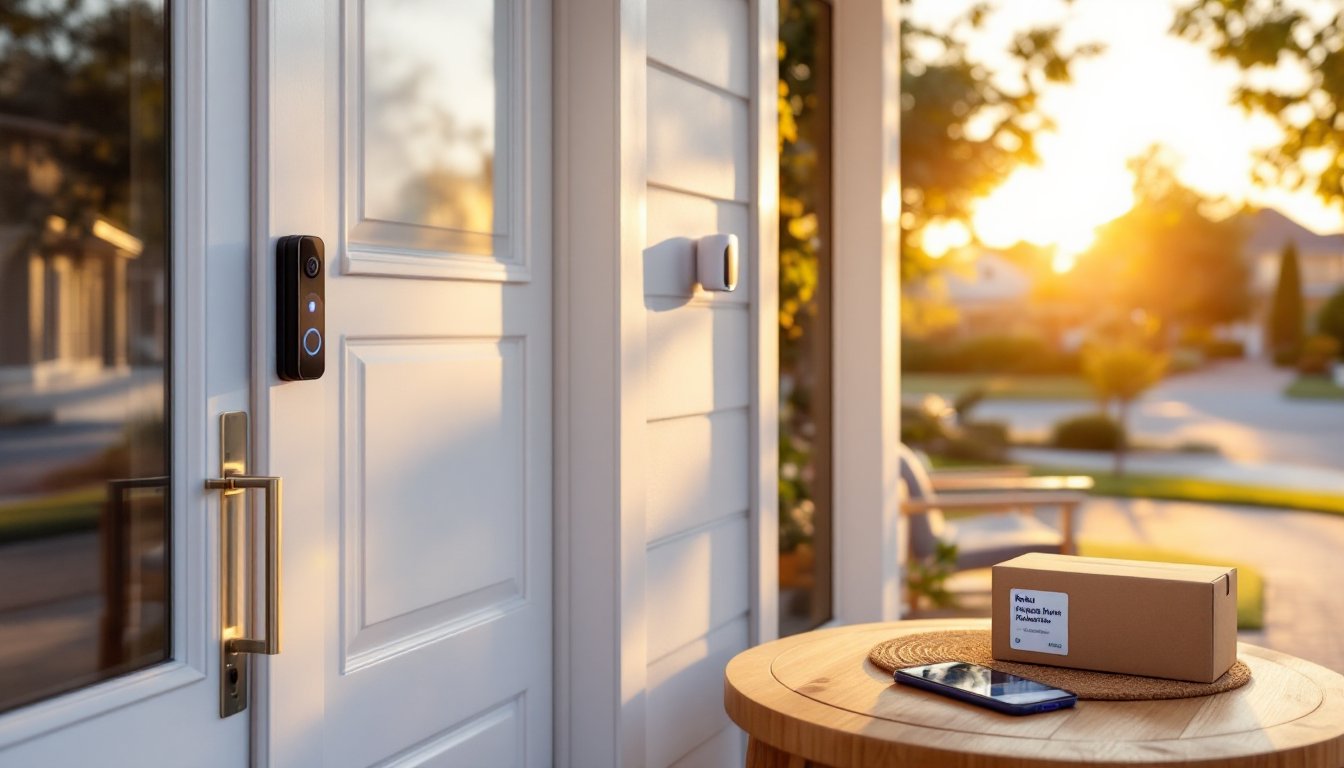
Video doorbells replace standard wired doorbells and require a 16–24V AC transformer, which most homes already have. Check your existing transformer voltage with a multimeter before ordering. If your chime is mechanical (the classic ding-dong type), it should work without modification. Digital chimes may need a resistor module (included with most Xfinity doorbells) wired in parallel to prevent buzzing.
One limitation: Xfinity cameras don’t support local recording or third-party NVR systems, which can be a dealbreaker if you want offline backups. Many smart visitor alert systems offer more flexibility for integrating multiple camera brands.
Smart Thermostats and Lighting Controls
Xfinity partners with brands like Ecobee and offers its own branded thermostat. Installation follows standard HVAC thermostat procedures: turn off power at the furnace or air handler, label existing wires (typically R, C, W, Y, G), remove the old unit, and match wires to the new terminal block. Most systems need a C-wire (common) for continuous power. If your old thermostat didn’t use one, you may need to run new 18/5 thermostat wire or install a C-wire adapter at the furnace.
Thermostat programming syncs with the Xfinity app, so you can set schedules or geofence automation that adjusts temperature when you leave. This is where remote home monitoring capabilities shine, checking that your heat didn’t fail during a winter trip can prevent frozen pipes.
Smart switches and dimmers install in standard single-gang boxes. Most require a neutral wire, which wasn’t always run to switch boxes in homes built before the 1980s. If you don’t have a neutral (typically a bundle of white wires wire-nutted in the back of the box), you’ll need to either run new 14/3 Romex from the fixture or use a smart bulb instead of a smart switch.
Dimmer compatibility depends on bulb type. LED bulbs must be dimmable-rated: using non-dimmable LEDs with a smart dimmer causes flickering or early burnout. CFL bulbs generally don’t dim well and aren’t worth the trouble.
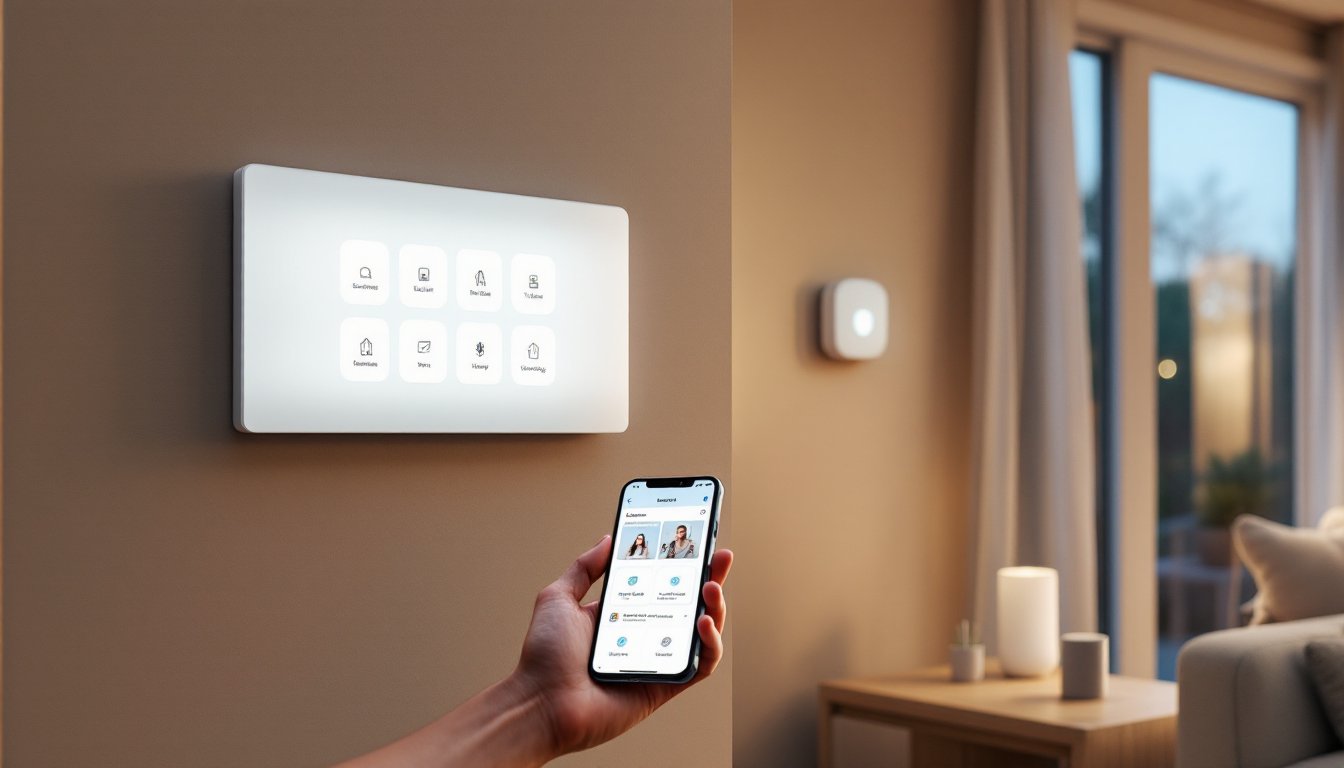
Xfinity’s lighting controls support grouping and scenes, so you can trigger “Good Night” to lock doors, arm sensors, and turn off all lights with one command. It’s not quite as flexible as a dedicated smart home control panel, but it covers most common automation use cases.
Setting Up Your Xfinity Smart Home System: Step-by-Step
Installation is marketed as DIY-friendly, and for the most part, it is. Here’s the realistic workflow.
1. Order equipment and confirm your Xfinity service tier. You’ll need an active Xfinity internet subscription. Bundles that include the smart home hub typically ship within 3–5 business days.
2. Install the hub. The hub is a small white box that connects to your Xfinity gateway via Ethernet. Plug it into an outlet near your router, connect the Cat5e or Cat6 cable, and power it on. The LED will cycle through colors as it boots, solid green means it’s connected.
3. Download the Xfinity Home app (iOS and Android). Log in with your Xfinity credentials, and the app should auto-detect the hub.
4. Add devices one at a time. Start with door/window sensors: peel the adhesive backing, mount the larger piece on the door frame and the magnet on the door itself, keeping the alignment marks within 1/2 inch of each other. In the app, tap “Add Device,” scan the QR code on the sensor, and follow pairing prompts. Most devices pair in under 30 seconds.
5. Mount cameras. For exterior cameras, run the power cable through a small hole drilled with a 3/8-inch bit (seal with silicone caulk after), or use a weatherproof cover plate if the cable exits through a wall penetration. Position cameras 7–9 feet high to balance coverage and facial recognition. Avoid aiming directly at bright light sources, which cause lens flare and wash out footage.
6. Test sensors and automation. Walk through your home triggering each sensor to confirm it registers in the app. Set up a simple automation, like “if front door opens after 10 PM, turn on entryway light”, to verify the system responds.
7. Configure monitoring preferences. Choose whether you want professional monitoring or self-monitoring, set notification preferences, and add emergency contacts.
One tip from experience: pairing devices works best when you’re within 10 feet of the hub. If a sensor won’t pair, bring it closer, complete the setup, then move it to its final location. Z-Wave has good range through drywall but struggles with metal studs or thick masonry.
For homeowners interested in installing smart devices across multiple rooms, plan your sensor layout on paper first to avoid dead zones.
Pricing and Subscription Plans for Xfinity Home
Xfinity Smart Home pricing breaks into equipment costs and monthly subscriptions. As of 2026, here’s the structure:
Equipment:
- Starter kit (hub, keypad, 2 door/window sensors, 1 motion sensor): $150–$200 upfront or financed over 24 months.
- Additional door/window sensors: $30–$40 each.
- Indoor camera: $100–$130.
- Outdoor camera: $150–$180.
- Video doorbell: $120–$180, depending on features.
- Smart locks, thermostats, and plugs: $50–$250, varying by brand.
Many devices go on sale during promotional periods, so it’s worth waiting if you’re not in a rush.
Subscriptions:
- Self-monitoring (around $10/month): App access, basic notifications, limited cloud storage.
- Professional monitoring (around $40–$50/month): 24/7 monitoring center, police/fire dispatch, cellular backup, extended video storage, and unlimited cameras.
Professional monitoring requires a contract, typically 12–24 months. Early termination fees apply, usually a prorated portion of remaining months. Self-monitoring is month-to-month.
Compared to competitors, Xfinity sits in the middle. It’s cheaper than ADT’s professionally installed systems but more expensive than pure DIY platforms like Wyze or SimpliSafe. The value proposition hinges on whether you already have Xfinity internet, bundling can shave $10–$15/month off the subscription if you’re on a qualifying plan.
Keep in mind that video storage eats bandwidth. If you’re running multiple 1080p cameras on a slower internet tier (under 100 Mbps download), consider upgrading to avoid lag during peak usage. Xfinity conveniently offers higher-speed tiers bundled with smart home services, though you’re not locked into their upsell if you shop around.
Pros and Cons: Is Xfinity Smart Home Right for You?
Pros:
- Single ecosystem: One app controls security, cameras, thermostats, and lights, no juggling multiple platforms.
- Existing customer advantage: If you’re already paying for Xfinity internet, integration is seamless and bundles offer discounts.
- Professional monitoring option: 24/7 response and cellular backup add peace of mind, especially in areas prone to power outages.
- DIY-friendly installation: Most components are wireless and pair quickly without professional help.
- Z-Wave and Zigbee support: Works with a wide range of third-party devices, not just Xfinity-branded hardware.
Cons:
- Subscription-dependent: Core features like extended video storage and automation require ongoing monthly fees. Miss a payment, and your system is hobbled.
- No local storage: Cameras rely entirely on cloud recording, so internet outages mean no footage. Competitors like Ring and Arlo offer local backup options.
- Vendor lock-in: If you switch internet providers or move, transferring the system is complicated. Equipment may be tied to your account and region.
- Limited smart home integrations: While Z-Wave support is broad, Xfinity doesn’t natively integrate with Apple HomeKit, Google Home, or Alexa as smoothly as dedicated platforms. Voice control works but feels like an add-on rather than a core feature.
- Contract commitments: Professional monitoring locks you in for 1–2 years. Early exit is costly.
Xfinity Smart Home makes the most sense for current Xfinity internet customers who want a unified security and automation system without researching a dozen brands. It’s less appealing if you value platform flexibility, plan to switch providers, or want to avoid subscriptions.
For renters or those in apartments, Xfinity’s wireless sensors work well, though you’ll need landlord approval for cameras and video doorbells that require drilling. Smart home devices suited for apartments often prioritize non-permanent installation, which Xfinity partially supports.
If security is your top priority, third-party evaluations note that Xfinity’s professional monitoring is reliable, but camera quality lags slightly behind dedicated brands like Nest or Arlo. Outdoor cameras handle weather well but struggle in low-light conditions compared to models with infrared floodlights or color night vision.
For DIYers comfortable with basic electrical work and smartphone apps, setup is straightforward. Just remember that integrating Xfinity into a broader smart home strategy, like linking it with non-Xfinity smart speakers, advanced lighting scenes, or custom home automation routines, requires workarounds and may not deliver the seamless experience you’d get from a platform-agnostic system.
Bottom line: Xfinity Smart Home is a solid mid-tier option that works best when you’re already invested in the Comcast ecosystem. It won’t win awards for cutting-edge features or flexibility, but it covers the essentials with reasonable reliability. For broader context on how Xfinity stacks up against competitors in real-world testing, independent reviews provide detailed performance comparisons worth reading before you commit.