Table of Contents
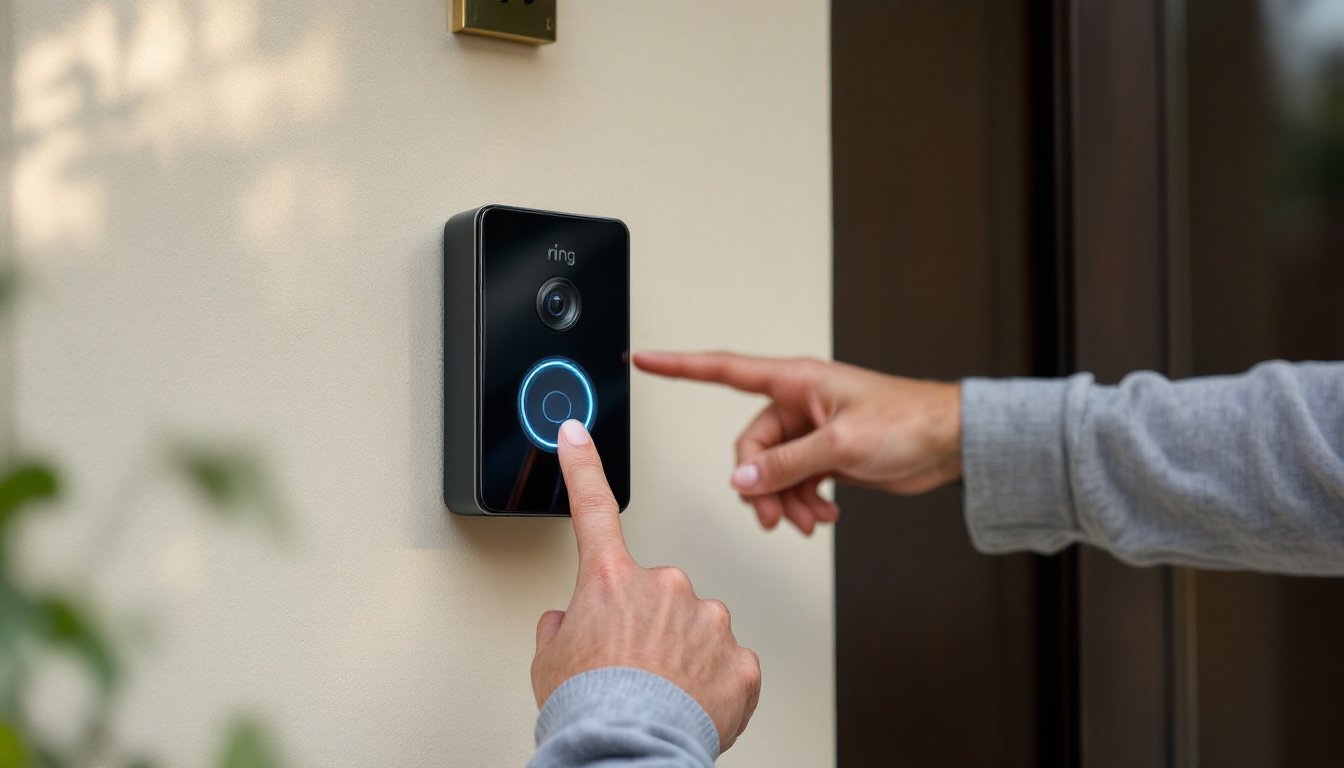
ToggleRing doorbells are reliable workhorses for home security, but like any connected device, they sometimes need a reset. Whether your doorbell’s stuck offline, refusing to pair with your Wi-Fi, or acting glitchy after a firmware update, a reset can restore functionality. This guide walks through both soft resets (quick fixes that preserve settings) and factory resets (full wipes for persistent problems). You’ll learn exactly which reset your situation calls for, how to execute it on different Ring models, and how to get your doorbell back online without losing your mind.
Key Takeaways
- A soft reset preserves your Ring doorbell’s settings and resolves up to 70% of connectivity and notification issues without requiring full re-setup.
- How to reset a Ring doorbell depends on your model—battery models use the app or battery removal method, while hardwired models require breaker shutdown or button presses lasting 10-20 seconds.
- Factory resets erase all device settings and remove the doorbell from your Ring account, which is necessary when transferring ownership or troubleshooting persistent problems that soft resets won’t fix.
- Ring doorbells only connect to 2.4 GHz Wi-Fi networks (not 5 GHz), and require an RSSI signal strength of -60 dBm or better for reliable reconnection after a reset.
- Wi-Fi connectivity issues account for roughly 60% of smart doorbell support requests, making a soft reset your first troubleshooting step before attempting a factory reset.
Why You Might Need to Reset Your Ring Doorbell
Resetting a Ring doorbell isn’t a daily occurrence, but certain issues make it necessary. The most common trigger is Wi-Fi connectivity problems, your doorbell shows as offline in the app, or it connects intermittently. This often happens after changing your router, updating your network password, or moving to a new home.
Firmware glitches are another culprit. If your doorbell freezes during an update, or if motion detection stops working after a software push, a reset can clear corrupted data. You might also need a reset if you’re transferring ownership, selling your house, gifting the device, or buying a used doorbell that’s still linked to the previous owner’s account.
Other reset-worthy scenarios include persistent notification failures (the doorbell rings but your phone stays silent), poor video quality that doesn’t improve after adjusting settings, or when the Ring app can’t locate your device during setup. According to research on smart home device troubleshooting, connectivity issues account for roughly 60% of all smart doorbell support requests.
Before you reset, try basic fixes first: reboot your router, check the Ring app for service outages, and verify your doorbell has adequate power. Ring Video Doorbells (battery models) need a charge above 20% to function reliably, while hardwired models require 16-24VAC from your transformer. If those checks don’t resolve the issue, it’s reset time.
What Happens When You Reset Your Ring Doorbell
A soft reset (also called a reboot) is the gentlest option. It power-cycles the device without erasing any settings. Your Wi-Fi credentials, motion zones, linked Alexa devices, and Ring Protect subscription stay intact. The doorbell simply restarts, which clears temporary software hiccups. This takes about 30 seconds and doesn’t require re-setup.
A factory reset (hard reset) wipes everything. The doorbell reverts to out-of-the-box condition, deleting your Wi-Fi network, all customized settings, device name, and app connection. You’ll need to set it up from scratch as if it’s brand new. But, your recorded video history remains safe in the cloud (if you have a Ring Protect plan), those recordings are tied to your Ring account, not the device itself.
Factory resets also remove the doorbell from your Ring account, which is essential if you’re selling the device or troubleshooting ownership transfer issues. If you skip this step, the new owner won’t be able to register it. One thing that doesn’t change: your hardwired doorbell’s physical installation. The reset affects software only, wiring, mounting hardware, and the chime kit connection remain as-is.
Plan for 5-10 minutes to complete a factory reset and reconnection. You’ll need your smartphone, the Ring app (iOS or Android), and your Wi-Fi password handy.
How to Perform a Soft Reset on Your Ring Doorbell
A soft reset is your first move for minor glitches. It’s non-destructive and takes seconds. Here’s how to do it for battery-powered and hardwired models:
For Battery-Powered Ring Doorbells:
- Open the Ring app and navigate to your doorbell.
- Tap Device Health, then scroll to Reboot This Device.
- Confirm the reboot. The doorbell will power down and restart within 30-45 seconds.
Alternatively, remove the battery, wait 10 seconds, then reinsert it. The doorbell will boot up automatically. For Ring Doorbell 3, 3 Plus, and 4 models, press the release tab at the bottom of the unit, slide the faceplate up, then lift out the battery pack.
For Hardwired Ring Doorbells (including Ring Pro and Elite):
- Locate your breaker box and flip the breaker that controls your doorbell circuit. If you’re unsure which breaker it is, flip breakers one at a time while watching the doorbell’s LED, when it goes dark, you’ve found it.
- Wait 30 seconds with the power off.
- Restore power by flipping the breaker back on.
The Ring Pro and Ring Pro 2 can also be soft-reset via the app using the same Reboot This Device option. After the reboot, check your Ring app to confirm the device is back online. Many users find that soft resets resolve up to 70% of minor connectivity and notification issues, per testing by home security reviewers.
How to Factory Reset Your Ring Doorbell (Hard Reset)
When a soft reset doesn’t cut it, a factory reset is your next step. This erases all settings and removes the device from your Ring account. Before proceeding, note your Wi-Fi network name and password, you’ll need them for reconnection.
Resetting Different Ring Doorbell Models
Each Ring model has a slightly different reset procedure, but all involve a physical button press:
Ring Video Doorbell (1st Gen, 2nd Gen) and Ring Video Doorbell 2:
- Remove the faceplate by unscrewing the security screw at the bottom (use the included screwdriver or a T15 Torx bit).
- Locate the orange button on the right side of the device.
- Press and hold the orange button for 15 seconds. The front LED will flash a few times, then turn off.
- Release the button. The doorbell is now reset.
Ring Video Doorbell 3, 3 Plus, and 4:
- Remove the faceplate by pressing the release tab and lifting.
- Find the black button on the front of the device (it’s below the camera lens).
- Press and hold for 15 seconds until the LED ring on the front flashes.
- Release when the light pattern changes.
Ring Video Doorbell Pro and Pro 2:
- Remove the faceplate using the release tool (a small pin or paperclip works).
- Locate the small black button on the right side.
- Press and hold for 20 seconds. The LED on the front will turn off, then begin flashing rapidly.
- Release the button.
Ring Video Doorbell Elite:
- Locate the reset button on the back of the device (you may need to partially unmount it).
- Press and hold for 10 seconds.
- The device will restart and enter setup mode.
Ring Video Doorbell Wired:
- Press and hold the black button on the front of the device for 15 seconds.
- Release when the LED flashes.
After releasing the button, wait 1-2 minutes. The doorbell will reboot and enter setup mode, indicated by a spinning white light or a pattern of flashing lights. If you don’t see this within 3 minutes, repeat the process, sometimes the button needs a firmer press. According to smart home tech coverage, inconsistent button presses are the most common factory reset failure point.
Reconnecting Your Ring Doorbell After a Reset
Once the factory reset completes, your doorbell is in setup mode and ready to reconnect. Open the Ring app on your smartphone (download it from the App Store or Google Play if you don’t have it).
Step-by-Step Reconnection:
- Tap the three-line menu in the top-left corner, then select Set Up a Device.
- Choose Doorbells, then select your specific model from the list.
- Follow the on-screen prompts. The app will ask you to scan the QR code or MAC ID on the back of your doorbell or inside the battery compartment. If the sticker’s worn, you can also enter the setup code manually.
- Press the setup button (the same one used for factory reset) to make the doorbell discoverable. The LED should flash a specific pattern indicating it’s in pairing mode.
- Connect your phone to the doorbell’s temporary Wi-Fi network (it’ll appear as something like “Ring-Setup-XYZ”). This is a direct connection only used during setup.
- Select your home Wi-Fi network and enter the password. Note: Ring doorbells operate on 2.4 GHz networks only, 5 GHz won’t work. If you have a dual-band router, make sure you’re selecting the 2.4 GHz SSID.
- Wait while the doorbell connects. This takes 1-3 minutes. The LED will turn solid blue or white when successful.
- Name your device, set your timezone, and configure motion zones and notification preferences.
- Test the doorbell by pressing the button and checking that you receive a notification.
If the connection fails, verify your Wi-Fi signal strength at the doorbell location. Ring recommends an RSSI (Received Signal Strength Indicator) of -60 dBm or better. You can check this in the app under Device Health after connection. If signal’s weak, consider a Wi-Fi extender or Ring’s own Chime Pro, which acts as both a chime and a network booster.
For hardwired models, also confirm your transformer voltage. Ring Pro models require 16-24VAC, and insufficient voltage causes connection dropouts. Use a multimeter to check voltage at the doorbell terminals if you suspect power issues.
Conclusion
Resetting a Ring doorbell, whether a quick soft reset or a full factory wipe, is straightforward once you know the button locations and hold times for your model. Most connectivity headaches resolve with a reboot, but don’t hesitate to factory reset if problems persist. After reconnecting, monitor your Device Health screen for the first 24 hours to confirm stable Wi-Fi and adequate power. If issues continue post-reset, contact Ring support or check for service outages in your area, sometimes the problem isn’t your device at all.